What you can bring
Anything made of words. A zip exported from Notion or Obsidian, a folder of markdown, a Word file, an RTF, or text pasted straight out of whatever you use. It does not need tidying first and it does not need to be organised in any particular way.
You do not have to bring everything at once, either. Import one campaign’s folder, see how it reads, and come back for the rest.
How it works, in one paragraph
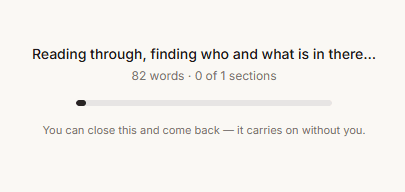
Your notes are read twice. The first pass looks only for names and merges them, so “Aldric Fenn”, “Aldric” and “the captain” become one person rather than three. You confirm that cast. The second pass reads again knowing who exists, and pulls out details and facts — each one quoting the passage it came from.
That is the whole design, and it is why the result is worth having. A single pass has no way to know it met Aldric four pages ago.
Step 1 — Open the importer
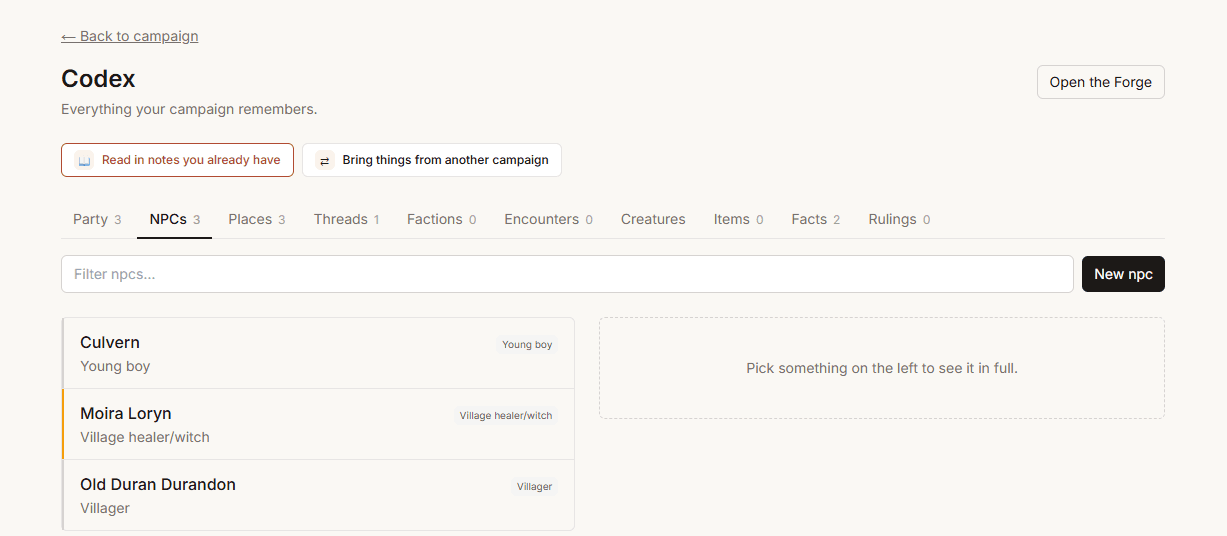
Go to Codex and choose Read in notes you already have. It is also the first of the three doors offered the moment a campaign is created.
Step 2 — Give it your notes
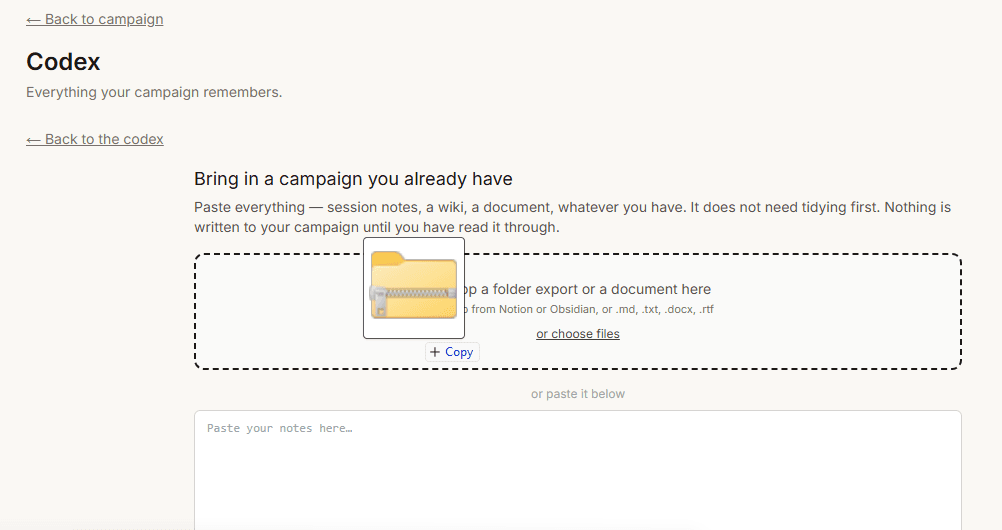
Three ways, and they all end in the same place:
- Drag a zip in. Notion and Obsidian both export as a folder of markdown, so this one gesture covers most people.
- Choose files. Individual
.md,.txt,.docxor.rtffiles. - Paste. Select all in whatever you use and paste it into the box. An estimate appears as you type: word count, roughly how many people and places, and how long it will take.
Step 3 — Choose which files to read
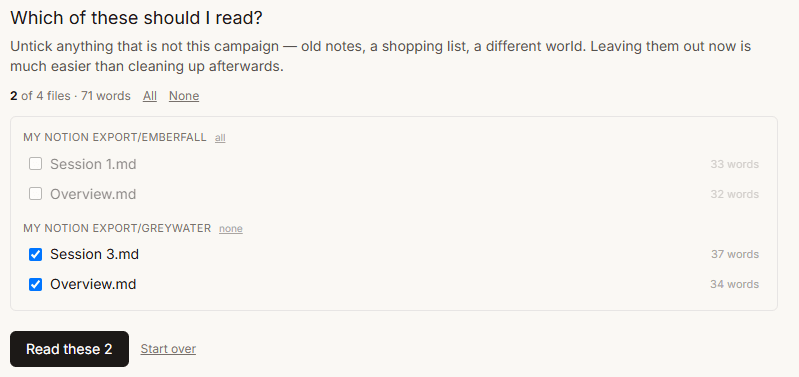
A vault is not a campaign. It has meeting notes in it, a shopping list, three abandoned settings and sometimes a different campaign entirely.
Yarnfold drops the obvious rubbish before you ever see it — config folders, images, empty pages, __MACOSX — and shows you everything else grouped by folder with word counts.
Step 4 — Confirm the cast
Everything found, grouped by kind and sorted by mention count — so the spine of your campaign is at the top and the scenery is at the bottom. Read down until it stops mattering.
- Rename anything that came out wrong. Type straight over it.
- Change the kind if something was filed as a place when it is a faction.
- Untick anything that is not real.
- Merge two entries that are the same thing under different names.
- Mark who is a player.
This is the most useful minute you will spend on the whole import, because everything after it resolves against exactly this list.
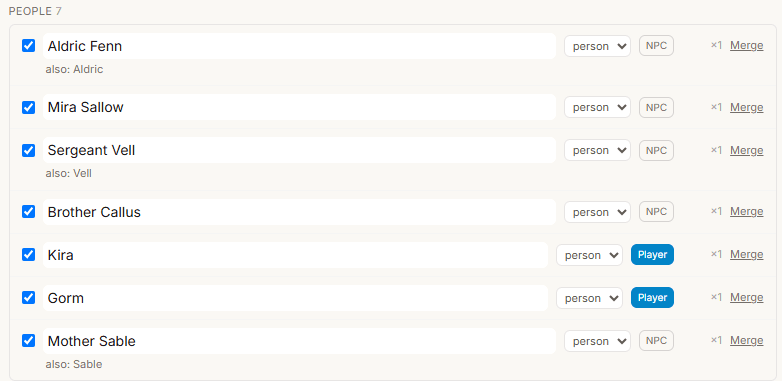
Merging two names into one person
Press Merge on a row and pick what it is the same as. The name you folded in becomes an alias, so every mention of it still resolves.
Merging is deliberately cautious. If your notes never say two names are the same person, Yarnfold will not assume it — a wrong merge is invisible for months, and a missed one is two rows next to each other on a screen you are already reading.
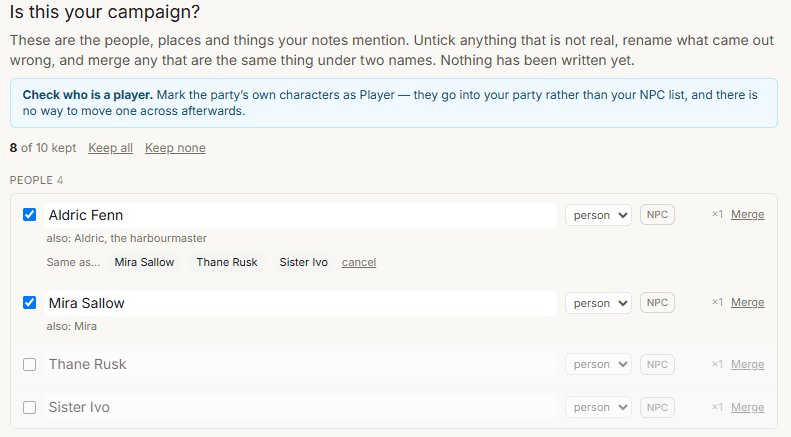
Marking who is a player
Every person gets a Player / NPC toggle. Player characters go into your party rather than your NPC list.
Step 5 — Review what your notes say
Entities are the unit here, not facts. A thirty-session campaign produces several hundred facts, and being asked for several hundred decisions is how an import gets abandoned at number forty.
- Scan the list. Everything arrives accepted.
- Open one to check its details and facts.
- Untick a line that came out wrong.
- Past sessions appear at the top, as history with their recaps.
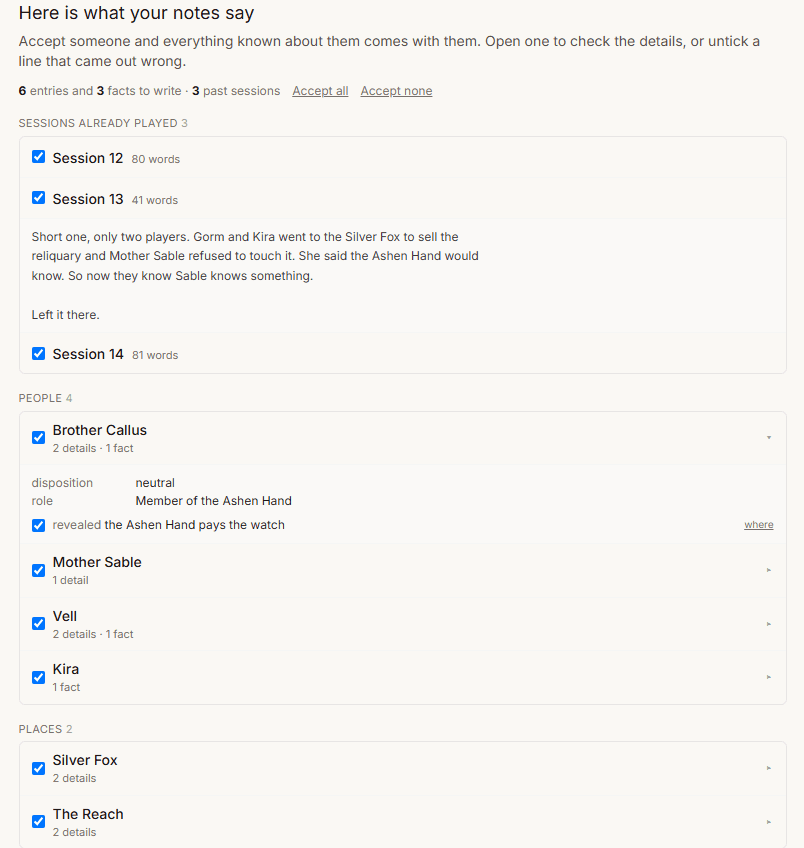
Every fact shows where it came from
Press where and you see the exact sentence in your own notes the fact was taken from.
This is not decoration. A fact whose quote is not genuinely in your notes is discarded before it ever reaches this screen, which turns “do not make things up” from an instruction into something mechanical.
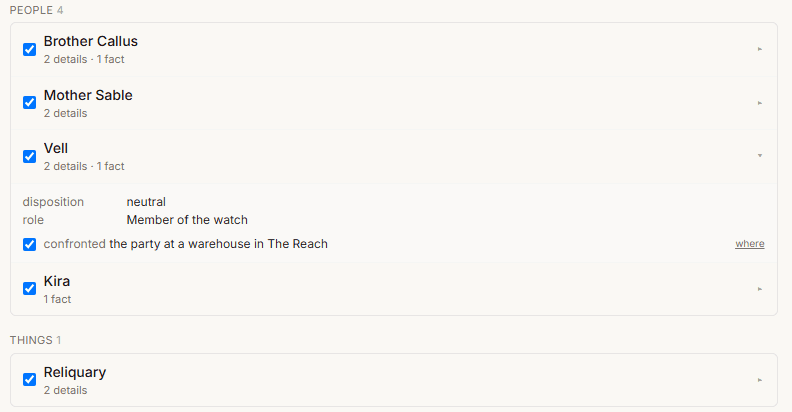
What a reviewed entry looks like
Aldric Fenn — person
role: Harbourmaster of Greywater · disposition: wary
✓ owes the Harbour Guild four hundred crowns
from “Aldric still owes the Guild four hundred crowns”
Step 6 — Write it in
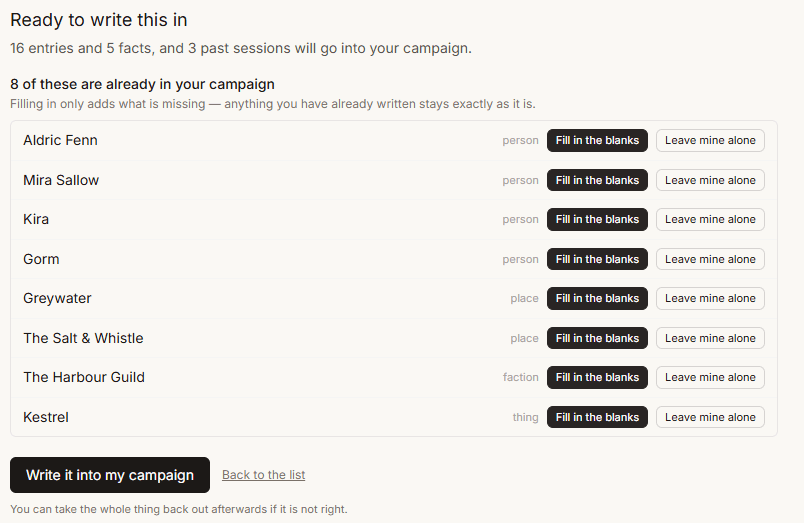
Before anything is written you are shown the names that already exist in this campaign, with a choice for each:
- Fill in the blanks — adds only what is missing. Anything you already wrote is untouched.
- Leave mine alone — changes nothing about them, though facts about them are still recorded.
Then commit.
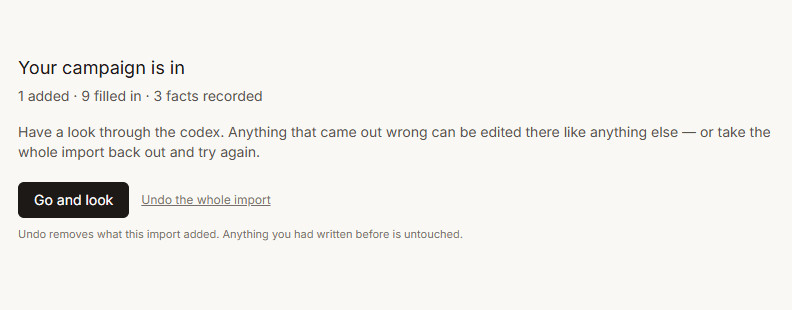
And undo, if it is not right
Everything created is deleted. Anything filled in on a record you already had is put back exactly as it was. Facts close rather than vanish, because a fact that was briefly believed is still part of the record.
Your own writing is never touched, whatever happens.
Questions
Questions people ask
No. Drop in a Notion or Obsidian export, a Word file, or paste anything at all. Yarnfold reads the people, places, factions and past sessions out of it and shows you every one before a word is written. If it is all in your head instead, answer nine questions and it builds from that.